|
|
|
|
| Philosophy |
|
You will eventually need to use a command prompt for running some of the Java tools, building programs from a batch file, deploying them, etc. At the very least you would like to have your system PATH statement include the JDK BIN folder. It's a hassle to have to enter this data every time you open a command prompt. You also don't want "other" java.exe programs to get in the way (for example those in Windows or browser folders). As you probably all know, you should not be using autoexec.bat on any of the 32 bit Windows systems. True Windows-compliant programs (if a program displays the little "windows compliant" logo) are not allowed to use config.sys, autoexec.bat, or *.ini but are to use the registry instead. On Windows98, NT and 2000 there is a much better way to set system parameters than autoexec.bat. It's really pretty slick on NT and 2000, less so on 98 but still very usable. |
| Windows NT4 and 2000 |
|
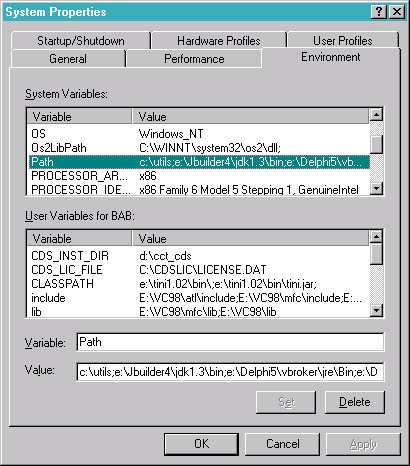
On NT4 use Start->Settings->Control Panel->System, then select the Environment tab. Here is a place to set all the environment parameters such as path, defines you can use in batch files, etc. NT calls them "System Variables" and you can set them for all users and for each user too. I put the JBuilder jdk bin path in my "all user" variable, ahead of any other path items, then it's already there at any command prompt I create, and no other "java" exes can get ahead of it. Win2000 is similar to NT, only it's called the "Advanced" tab. Here is an NT4 screen shot: In addition, you can specify a batch file and other settings
specific to each NT command prompt which you define. Right-click
on a command prompt icon in NT, select properties, then program.
You'll see a place here to enter a batch file, working directory,
and more Now click on the "Windows NT" button, and you can
further customize this command prompt by specifiying batch and
config file names: Here's 2000: |
| Windows 98 |
|
In Win98, you get to define a custom batch file and other settings for each command prompt you define. These are specific to each command prompt, so you can have a prompt specific to a given tool, JDK, whetever. First, create a command prompt, either on the desktop or in
a folder. To do this on the desktop, right-click over a blank
area on the desktop, select new->shortcut. A "create
shortcut" wizard pops up and asks for your command line.
Enter the path to your command.com, which for my Win98 system
is c:\windows\command.com: Click Next, then you will be prompted for a name. Enter something
like "Java Prompt". Now you will have an MSDOS command
prompt icon (or more than one, if you wish) on your desktop: Right-click on this command prompt icon and select "properties". A group of tabs will pop up, select the Program tab. Here's where you specify a batch file specific to the needs of this command prompt. I called mine javastuff.bat, and it sets the path thusly: SET PATH=e:\JBuilder4\jdk1.3\bin;%PATH%;
Now click on the Memory tab, and increase the available environment
to 4096: That's it. Click Apply or OK and you are done. You can also customize the screen settings on the Screen tab (I set mine to 50 lines). All these settings are specific to this command prompt and will not conflict with settings of other command prompts. To test the prompt, double click on it and type PATH or SET at the command line, and you should see the values you specified. |